Blog/Guides
7 AI Personal Assistants for Different Kinds of Work
The useful comparison is not model trivia. It is whether you need research, writing, office context, scheduling, privacy controls, or a dependable personal workflow.

Mateo Ruiz
Sep 7, 2026

The best AI personal assistant is rarely the one with the loudest feature list. It is the one that removes a recurring piece of work without creating a new verification burden. Someone who writes and analyses documents has a different need from someone who lives in Google Workspace, coordinates meetings, or needs cited web research.
Last reviewed: 7 September 2026. Account plans, integrations, and privacy controls vary by provider, region, and employer configuration; check the linked product documentation before connecting work data.
Do not give any assistant unrestricted access simply because it can save time. Start with low-risk work, inspect outputs, and expand access only when the assistant has earned it.
Match the assistant to the job
ChatGPT for a flexible workbench
ChatGPT is a practical choice for people who need to draft, analyse, brainstorm, reason through a problem, and build repeatable workflows in one place. Its breadth also means the user has to define the task well: source material, audience, constraints, desired format, and how to handle uncertainty.
Use it for a first draft, a critique, a meeting synthesis, or a structured plan. Do not use any general assistant as the sole authority for legal, medical, financial, or company-policy answers. Give it the source and ask it to identify uncertainty instead.
Claude for document-heavy thinking
Claude is a strong option for people who spend much of their day reading, comparing, and improving long documents. The practical test is simple: give it a real brief, a dense source set, and a request that requires it to preserve distinctions rather than flatten them into a generic summary.
Look for whether it carries the thread across the document, separates evidence from inference, and makes useful edits without rewriting your voice into corporate fog. Those are better personal-assistant signals than a clever one-line answer.
Gemini for Google-centred work
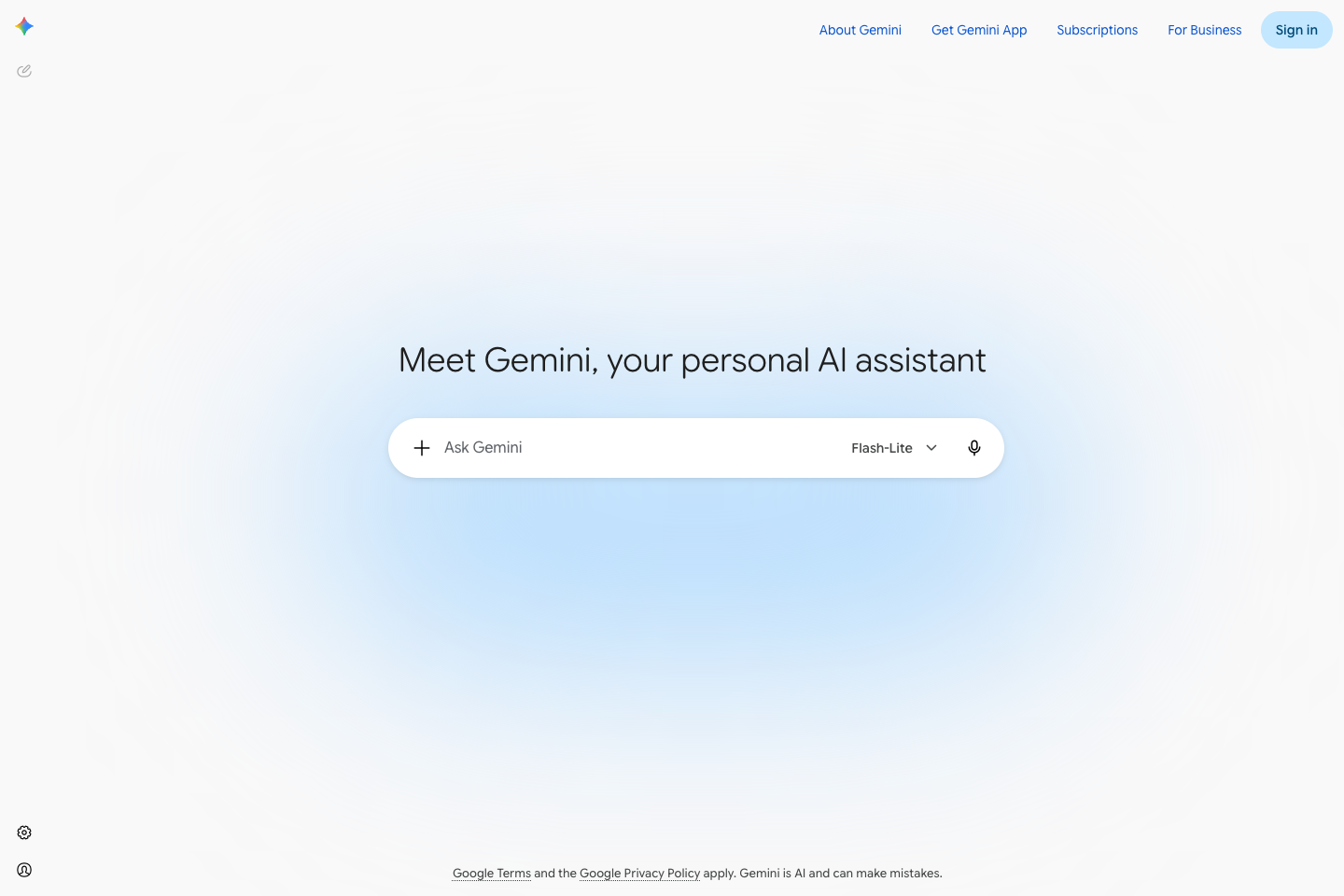
Gemini makes most sense for people whose calendar, mail, documents, and meetings already live in Google’s products. The potential benefit is context close to the work rather than a separate assistant that requires constant copying and pasting.
Before enabling broad access, understand what the specific edition can access and how your organisation manages permissions. A convenient summary is not useful if it can surface information to the wrong audience or if users cannot tell where it came from.
Microsoft Copilot for Microsoft 365 work
Microsoft Copilot is a focused option for organisations deeply invested in Microsoft 365. Its value is tied to everyday work in Word, Excel, Outlook, Teams, and other Microsoft surfaces, not to abstract model comparisons.
The important prerequisite is permissions hygiene. Copilot can make existing oversharing easier to discover. Review access controls and data classification before presenting an assistant rollout as a productivity project.
Perplexity for research that begins with sources
Perplexity is useful for research tasks where source visibility is part of the workflow. It can help someone find a starting set of documents, compare viewpoints, and move from a question to a reading list more quickly.
Treat citations as a route to verification, not a substitute for it. Open the source, check its date and authority, and make sure it supports the precise claim. This matters most when the answer influences a purchase, policy, or public statement.
Notion AI for work already organised in Notion
Notion AI is a natural fit when projects, notes, decisions, and documentation already live in Notion. It can reduce the friction of turning that material into summaries, drafts, project updates, and searchable context.
It is less compelling if the important work sits in another system. Do not migrate a team’s knowledge merely to obtain an AI button. First ask where the source of truth should live and who maintains it.
Reclaim for calendar reality
Reclaim serves a more specific form of personal assistance: protecting time, scheduling habits, and keeping priorities visible against a changing calendar. It does not replace a general writing or research assistant. It solves the practical question of whether important work has a place to happen.
Set boundaries before automating. Define working hours, meetings that cannot move, task classes that may shift, and who can override the calendar. A scheduling assistant becomes stressful when it optimises availability without understanding commitments.
Compare personal assistants by the information boundary
The crucial difference is not whether an assistant can generate prose. It is where the work begins and where the answer goes. A general assistant is useful when you can provide the relevant context in the chat. A workspace assistant is useful when the right context already lives in a governed office suite. A research assistant is useful when you need to inspect sources. A calendar assistant is useful when it can see the constraints that shape your day.
This avoids the false choice of selecting one “best” tool for every task. Many people use a general assistant for drafting and a calendar assistant for time. The only reason to consolidate is if the added context and controls improve the workflow rather than making it harder to inspect.
A privacy-first setup
Before connecting an assistant to mail, documents, meetings, or a calendar, read the plan-specific privacy and retention terms, then ask what data the assistant can access by default. Review shared folders and recurring meeting invites, because broad access can expose information that no one intended to surface through an AI interface.
Create three data classes: information that may be used freely, information that requires an approved work account, and information that must not be entered. Keep client secrets, protected personal information, and unreleased material out of consumer tools unless the organisation has explicitly approved the arrangement. This is not a reason to avoid assistants. It is the prerequisite for using them without creating a surprise review later.
For recurring work, make the assistant show its work. Ask for linked sources, a list of assumptions, or an editable draft with open questions. The goal is a collaborator whose output can be checked quickly, not a black box whose confidence sounds like authority.
A sensible personal rollout
- Choose one repetitive task with a clear definition of good work.
- Keep the source material and final decision with the human.
- Track time saved and time spent correcting output for two weeks.
- Add integrations only after the assistant proves useful without them.
- Review privacy, retention, and account settings before adding client or company information.
The right assistant should make your work more deliberate, not merely faster-looking. If it produces a fluent answer that you cannot trust, the verification work cancels the gain.
Questions
Questions about AI personal assistants
Use the account type approved for the information you plan to handle. Employer-managed plans may have different controls, retention, identity, and data-use terms than consumer accounts. Do not assume a familiar consumer interface has the same protections as an enterprise deployment.
Choose the assistant closest to the meeting and calendar system your team actually uses, then test it on a real meeting with names, decisions, owners, and deadlines. A useful summary preserves unresolved questions and does not turn tentative discussion into a decision.
Track one task for two weeks: drafting a status update, preparing research, or organising a calendar. Count the time to prepare inputs, review output, correct errors, and send the final work. The assistant is valuable only when the full cycle improves.
When the assistant must serve a whole team rather than one person, the decision shifts to sources, permissions, and handoffs. Use the conversational AI assistant platform comparison for that evaluation, and the Google AI chatbot guide when Gemini or Google Cloud is in scope.
Updated Sep 7, 2026.